
Using Falcon on Your Chart
After installing Deep Signal Falcon, you can add it to any NinjaTrader chart just like any other indicator. Falcon works best on Renko or time-based charts that provide a stable representation of price movement. Although it can analyze any instrument or timeframe, its accuracy improves when the chart includes enough historical data for the optimization process to complete.
Adding Falcon to a Chart
Open a chart in NinjaTrader for the instrument you want to analyze.
Right-click on the chart and select Indicators.
From the list of available indicators, locate and select Deep Signal -> AI -> Indicators -> Falcon.
Click Add, then adjust the settings in the Properties panel as needed.
Click OK to apply Falcon to your chart.
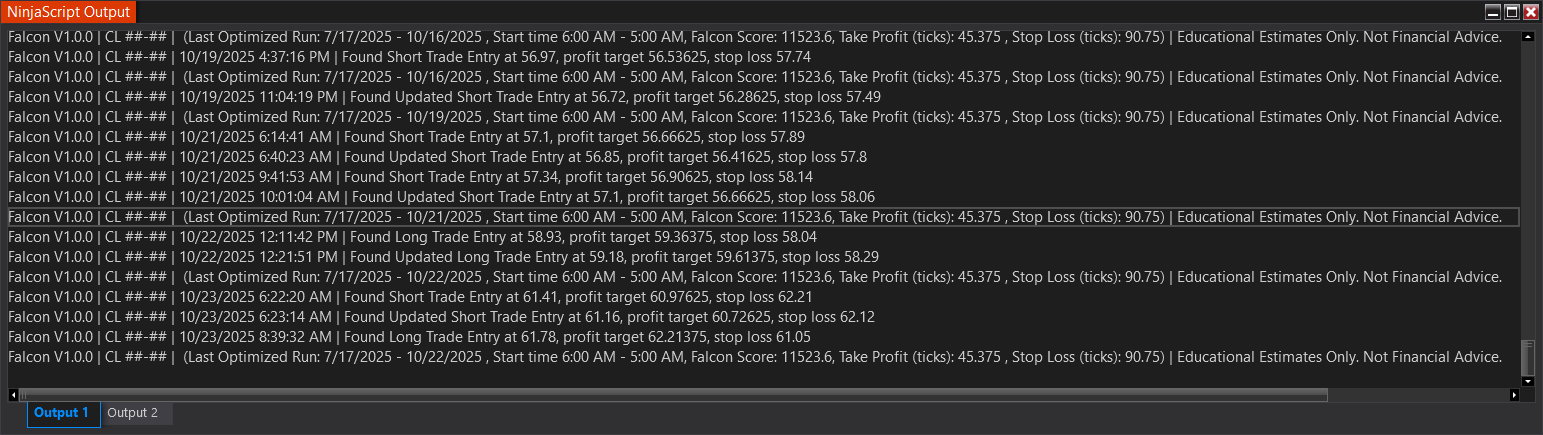
When first loaded, Falcon will begin analyzing available historical bars and initializing its machine learning model. Depending on the amount of data on your chart, this may take a few moments. During this time, you might notice activity in the NinjaScript Output Window as Falcon logs its optimization process.
Interpreting Falcon’s Signals
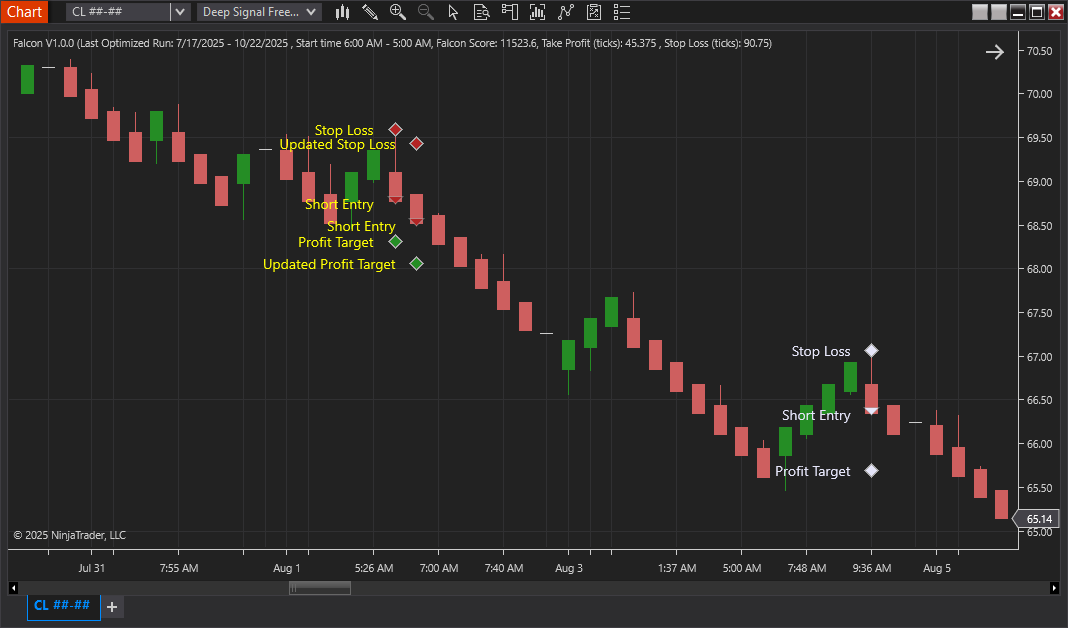
Once Falcon has completed its initialization, trade signals will begin appearing on the chart.
- Up Arrow (▲) – Indicates a potential long entry.
- Down Arrow (▼) – Indicates a potential short entry.
- Green Diamond (◆) – Falcon’s projected profit target for the trade.
- Red Diamond (◆) – Falcon’s projected stop level for managing risk.
Each signal is generated from Falcon’s AI analysis of historical and live market data, representing where the model anticipates price movement may occur next. These projections do not guarantee outcomes; they are meant to help identify high-probability setups and guide position management.
Falcon also distinguishes between signals that fall inside or outside its optimized trading window:
- Colored symbols (arrows and diamonds) indicate that the signal is within the optimized trading window, meaning Falcon’s model currently considers the trade setup valid based on its internal parameters.
- White symbols appear when a trade setup occurs outside the optimized window, suggesting that market conditions have shifted beyond Falcon’s preferred range for that configuration.
This visual distinction allows traders to quickly recognize which signals the model currently prioritizes and which are provided for reference outside of its optimized range.
Customizing Falcon’s Appearance
Falcon provides several options to help tailor its chart display:
- Signal Colors – You can change the color of arrows, diamonds, and text markers to match your chart theme.
- Show Trade Text – Displays optional text markers (e.g., “Long Entry,” “Short Entry,” or “Target”) next to each symbol.
- Show Header Text – Adds a brief Falcon label at the top of the chart.
- Log Messages – When enabled, Falcon writes diagnostic messages to the NinjaScript Output Window, which can be useful for reviewing how the model interprets trade conditions.
These settings can be adjusted at any time from the Indicator Properties window. Please see the Falcon Parameters section for more information.
Continuous Optimization
Falcon continually refines its model at the beginning of each new session. This allows it to adapt to changing market behavior throughout the session.
In some cases, you may see a second set of signals appear on subsequent bars — this reflects Falcon’s recalibrated understanding of recent price action. These updates ensure that Falcon remains aligned with the most current market conditions.
Futures, foreign currency and options trading contains substantial risk and is not for every investor. An investor could potentially lose all or more than the initial investment. Risk capital is money that can be lost without jeopardizing ones financial security or lifestyle. Only risk capital should be used for trading and only those with sufficient risk capital should consider trading. Past performance is not necessarily indicative of future results.