
Deep Signal AI Trade Coach combines AI-powered code review with real trade analysis to give traders a holistic view of their trades to uncover problems, understand performance, and identify opportunities to improve their strategies.
Overview
Deep Signal AI Trade Coach gives you an AI-powered second set of eyes on both sides of your trading: the strategy you built and the trades it actually produces. Most strategy-development tools focus on either code or performance. AI Trade Coach connects the two.
For automated strategies, AI Trade Coach can review your actual NinjaScript source code to identify potential bugs, risk-management concerns, trading-logic problems, and opportunities for improvement. At the same time, AI Trade Coach analyzes your completed trades to uncover patterns in entries,exits, MFE, MAE, strategy parameters, and overall performance that may not be obvious from a traditional performance report.
For discretionary traders, AI Trade Coach can analyze manually placed trades as well, helping identify recurring patterns in trading behavior and execution.
AI Trade Coach provides two complementary coaching perspectives:
Performance Coaching
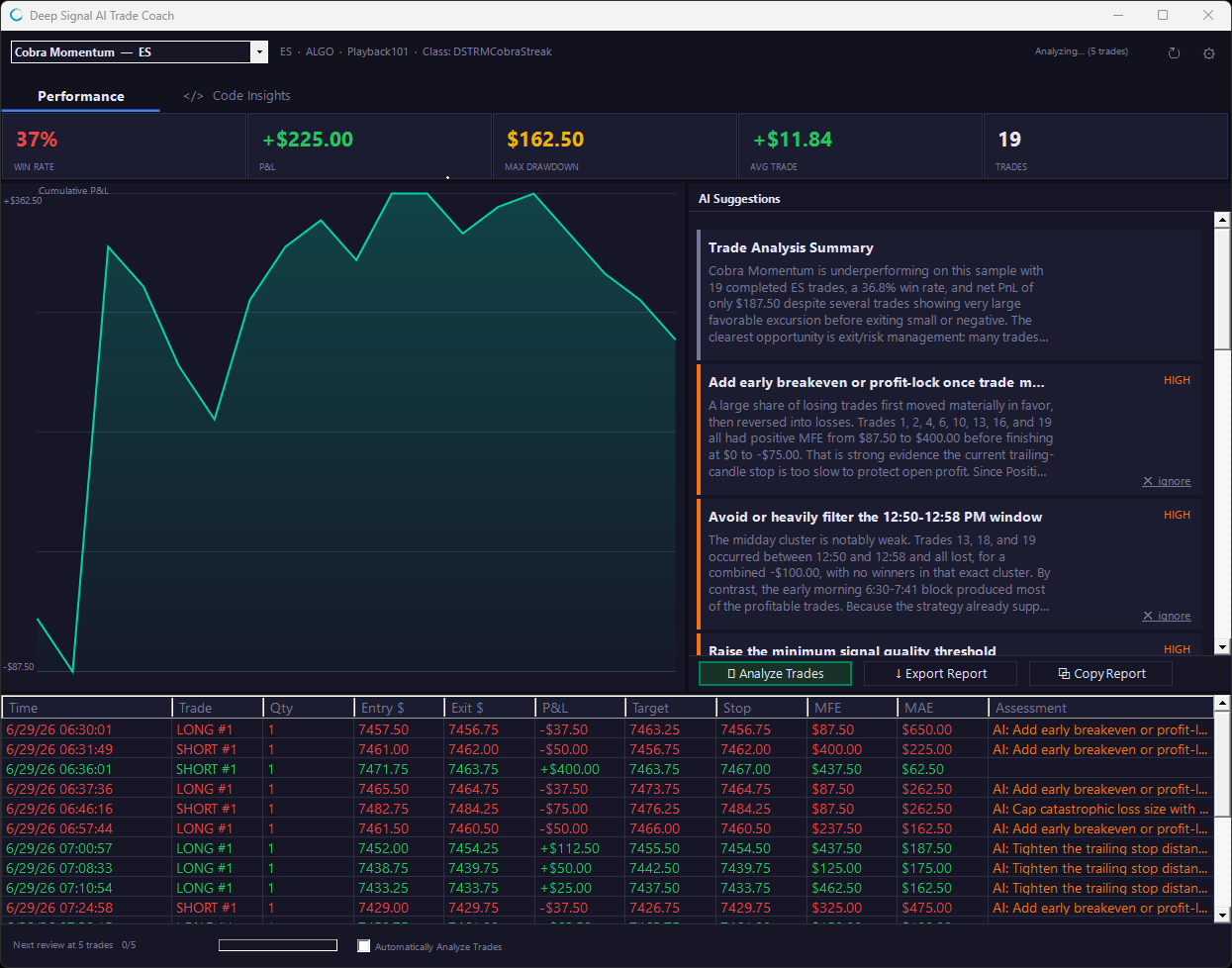
→ Analyzes your actual trading history for recurring patterns and potential opportunities
Code Coaching
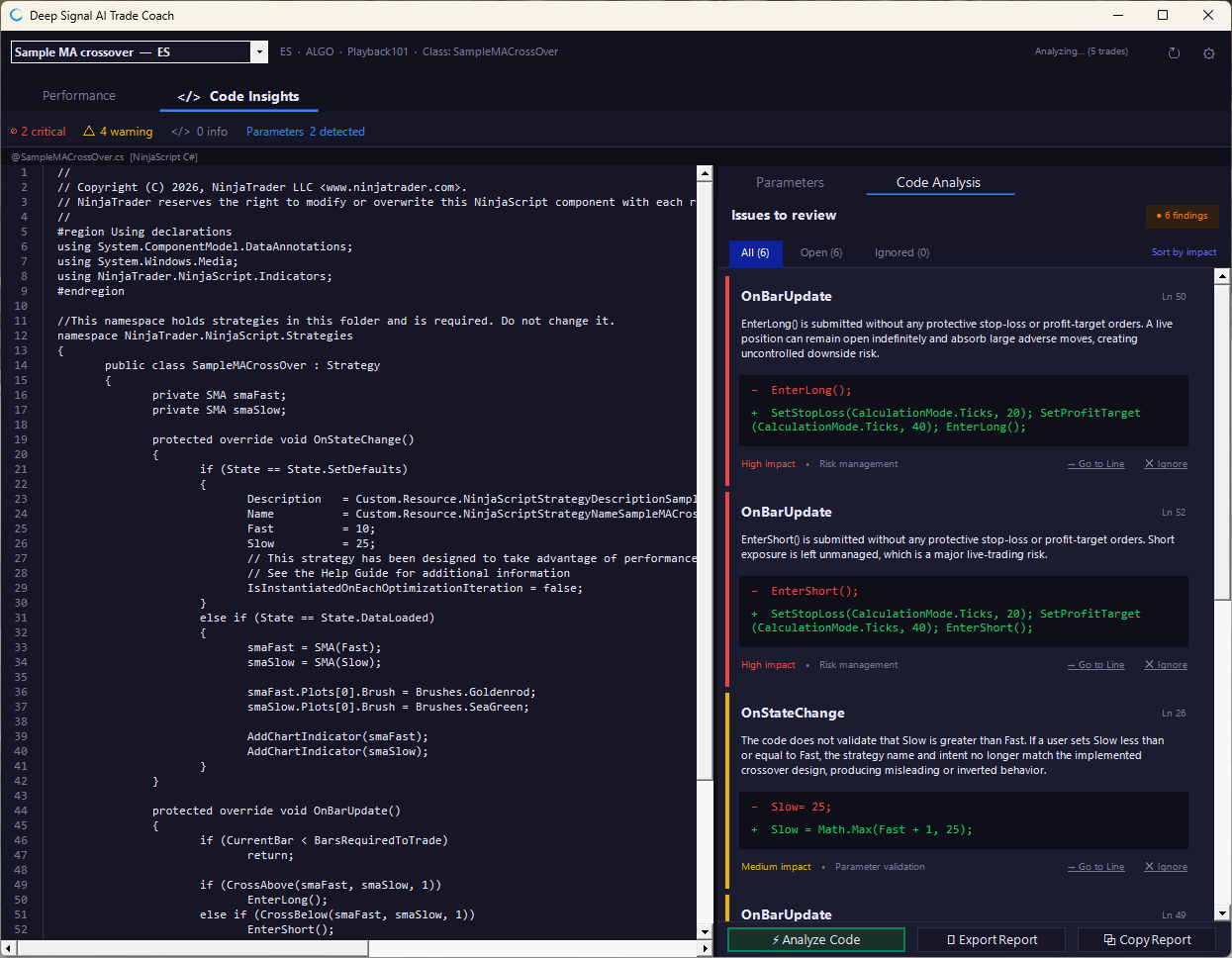
→ Reviews your NinjaScript source code for potential bugs, risk, trading-logic concerns, and code-quality issues, then provides explanations and suggested improvements.
Together, these two perspectives help answer a much more useful question than simply:
"Did my strategy make money?"
Instead, AI Trade Coach helps you investigate:
"Why did it perform the way it did—and what should I investigate next?"
Getting Started
Please see the Downloading Installer and Installation Guide sections for how to download the installer. Please note the installation file will be named DeepSignalAddOnInstaller with a version number. NinjaTrader will need to be closed in order to install.
Once the Deep Signal Add Ons installation is complete you will need to activate the license. Please see the License Manager section on how to activate your license.
The next step is to start NinjaTrader and compile. Go to the NinjaTrader main window -> New -> NinjaScript Editor. Right click in the area to the left of the folders and click on Compile or press F5.
Open AI Trade Coach
From the NinjaTrader Control Center, select:
New → Deep Signal AI Trade Coach
Before you can use Analyze Code or Analyze Trades, you must configure an OpenAI or Anthropic API key. If you have not configured an AI provider yet, continue with Configure Your AI Provider below.
Configure Your AI Provider
Open Settings by clicking the gear icon (⚙) in the upper-right corner of the AI Trade Coach window.
Select the AI Setup tab.
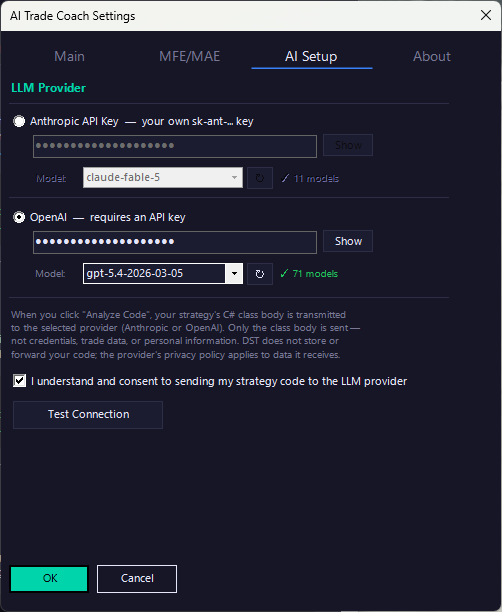
AI Trade Coach supports:
- OpenAI
- Anthropic
You must supply your own API key for the provider you want to use. AI usage is billed separately by the selected provider.
Anthropic Setup
To use Anthropic:
- Go to the Anthropic API console and sign in or create an account.
(https://platform.claude.com/settings/workspaces/default/keys)
- Create a new API key.
- Copy the API key.
- In AI Trade Coach, select Anthropic as the LLM Provider.
- Click Show next to the API key field.
- Paste your API key.
- Click the refresh (↻) button to load the models available to your account.
- Select the model you want to use.
- Enable the required consent option.
- Click Test Connection.
- Click OK to save your settings.
Anthropic API usage is billed separately by Anthropic.
OpenAI Setup
To use OpenAI:
- Sign in to the OpenAI Platform and create an API key.
(https://console.anthropic.com/settings/keys)
- Copy the new secret key.
- In AI Trade Coach, select OpenAI as the LLM Provider.
- Click Show next to the API key field.
- Paste your API key.
- Click the refresh (↻) button to load the models available to your account.
- Select the model you want to use.
- Enable the required consent option.
- Click Test Connection.
- Click OK to save your settings.
OpenAI API usage is separate from a ChatGPT subscription and is billed by OpenAI according to your API account.
Important When Entering an API Key
Click Show before entering or replacing an API key.
If a new key is entered while the API-key field is still masked, the new value will not be saved when you click OK.
Selecting a Strategy
AI Trade Coach displays strategies that are currently enabled and running in NinjaTrader.
If Your Strategy Does Not Appear
- Open the NinjaTrader chart or Strategies window containing the strategy.
- Locate the strategy.
- Make sure Enabled is checked.
- Return to AI Trade Coach.
- Select the strategy from the strategy list.
Important: Installing or compiling a NinjaScript strategy is not enough for it to appear in AI Trade Coach. The strategy must currently be enabled and running.
Manual trades do not require an enabled strategy. They are automatically grouped under Manual Trades.
Analyzing Strategy Code
Code Coaching can be used whenever you want AI Trade Coach to review the source code for an enabled NinjaScript strategy.
You do not need to wait for the strategy to accumulate trades.
Run a Code Analysis
- Make sure the strategy is enabled in NinjaTrader.
- Select the strategy in AI Trade Coach.
- Open Code Insights.
- Select Code Analysis.
- Click Analyze Code.
AI Trade Coach sends the strategy's C# class body to the configured AI provider for analysis.
The results are displayed as individual findings.
Understanding Code Findings
Each code finding is assigned one of three severity levels:
Critical — A potentially significant issue that should be carefully reviewed.
Warning — A concern that may affect strategy behavior, reliability, risk, or code quality.
Info — An informational finding or lower-priority improvement.
Start by reviewing Critical findings, followed by Warning findings.
The quality bar at the top of Code Insights shows the number of Critical, Warning, and Info findings and the number of parameters detected. It is a summary of the current analysis, not a profitability score.
Working With Code Findings
A code finding may include:
- Method or source location
- Line number
- Severity
- Description of the issue
- Suggested change
- Original and suggested code
Go to Line
Select Go to Line to move directly to the relevant location in the displayed source code.
Ignore
Select Ignore when you have reviewed a finding and do not want it included with the active findings. Ignored findings are not deleted.
Use the Ignored filter to view them again.
Use Restore to return an ignored finding to the active findings.
Export Report
Select Export Report to save the current code-analysis findings as a text file.
Copy Report
Select Copy Report to copy the code-analysis findings to the Windows clipboard.
This is useful if you want to paste the findings into documentation, another development tool, or an AI conversation.
Viewing Strategy Parameters
Select Code Insights → Parameters
The Parameters tab displays the input parameters detected for the selected strategy, including each parameter's name and current value.
Parameter-related observations generated during Performance Coaching appear through AI Suggestions rather than as status indicators on the Parameters tab.
Analyzing Trades
AI Trade Coach collects completed trades while NinjaTrader and the strategy are running. Executions are assembled into completed round-trip trades and associated with the appropriate strategy.
Manually placed trades are grouped under:
Manual Trades
You can analyze the currently collected trades at any time by clicking:
Analyze Trades
AI Trade Coach sends the appropriate trade information to the configured AI provider and displays the resulting Performance Coaching suggestions.
Automatic Trade Analysis
AI Trade Coach can automatically run Performance Coaching after a specified number of new completed trades.
Automatic analysis must first be enabled.
Check the Automatically Analyze Trades checkbox on the bottom of the AI Trade Coach screen
Analysis threshold (trades)
Open the Settings dialog and go to the Main tab. The analysis threshold can be set there.
The default threshold is 25 completed trades and can be adjusted from 5 to 500.
For example, with a threshold of 25, AI Trade Coach can perform another analysis after 25 new completed trades have accumulated.
If Automatically Analyze Trades is disabled, AI Trade Coach continues collecting trades, but an automatic analysis will not run.
Click Analyze Trades whenever you want to perform the analysis manually.
Important: Trade History and Restarts
Trade history collected by AI Trade Coach is session-based.
The collected trade history and analysis-threshold progress do not persist when:
- NinjaTrader is restarted.
- A strategy is disabled and then re-enabled.
After either event, AI Trade Coach begins collecting trades for that strategy again.
This is normal behavior.
The Clear Trade History option in Settings can also be used to clear the currently stored trade information if the displayed statistics appear incorrect.
Performance Tab
Select the Performance tab to review the trading information collected for the selected strategy.
Summary information includes statistics such as:
Win Rate · P&L · Maximum Drawdown · Average Trade
The trade grid provides information about individual completed trades, including MFE, MAE, and AI-generated assessments when available.
AI Suggestions
After Analyze Trades completes, AI Trade Coach displays Performance Coaching findings under AI Suggestions.
Suggestions can be assigned one of four impact levels:
- Low — Lower-priority observation.
- Medium — An observation worth investigating.
- High — A meaningful or recurring pattern that deserves closer attention.
- Critical — A potentially significant pattern that should receive priority.
Understanding MFE and MAE
AI Trade Coach can track Maximum Favorable Excursion (MFE) and Maximum Adverse Excursion (MAE) for completed trades. Both values are displayed in dollars.
MFE — Maximum Favorable Excursion
MFE is the maximum amount a trade moved in your favor while it was open.
For example, suppose a trade eventually closes with a $200 profit, but at one point had $700 of unrealized profit.
The trade's MFE provides additional information about how much favorable movement occurred before the trade was closed.
MAE — Maximum Adverse Excursion
MAE is the maximum amount a trade moved against you while it was open.
For example, if winning trades regularly experience $150–$200 of adverse movement before becoming profitable, MAE can help you understand how much normal adverse movement those trades experienced.
MFE and MAE provide information that final P&L alone cannot show.
Configuring MFE/MAE
Open:
Settings → MFE/MAE
Enable MFE/MAE Tracking
MFE/MAE tracking is enabled by default.
When enabled, AI Trade Coach subscribes to live market data for each detected strategy symbol and records the high and low prices observed between trade entry and exit.
Disable this option if you do not want AI Trade Coach to create the additional market-data subscriptions.
Market Data Type
Choose the price source used for MFE/MAE tracking:
Last — Last traded price. This is the default.
Bid — Current bid price.
Ask — Current ask price.
Futures, foreign currency and options trading contains substantial risk and is not for every investor. An investor could potentially lose all or more than the initial investment. Risk capital is money that can be lost without jeopardizing ones financial security or lifestyle. Only risk capital should be used for trading and only those with sufficient risk capital should consider trading. Past performance is not necessarily indicative of future results.