
Deep Signal AI Trade Coach Settings
Open Settings from the ⚙ icon in the top-right of the AI Trade Coach header. Settings is organized into four tabs: Main, MFE/MAE, AI Setup, and About.
Main Tab
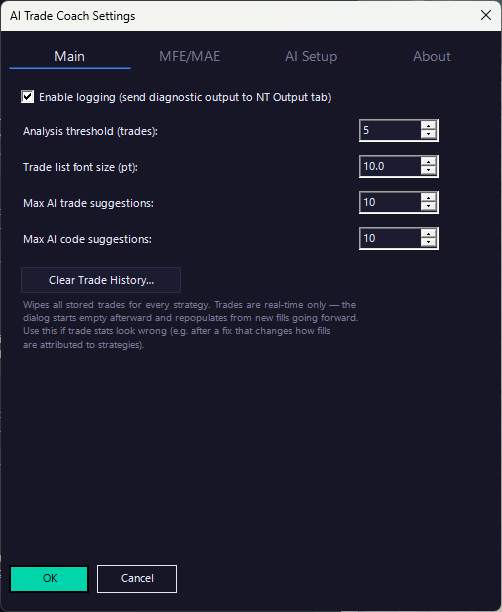
Enable logging — sends diagnostic output to NinjaTrader's Output tab. Off by default; turn it on if you're troubleshooting and need to see what AI Trade Coach is doing internally.
Analysis threshold (trades) — how many new completed trades a strategy needs before AI Trade Coach can automatically trigger another Performance Coaching review. Default is 25; adjustable from 5 to 500. This works together with the Automatically Analyze Tradesoption below it — you can still run Analyze Trades manually at any time regardless of this setting.
Trade list font size (pt) — text size for the trade grid on the Performance tab. Default 7.5pt; adjustable from 6 to 16.
Max AI trade suggestions — the most AI Suggestions Performance Coaching (Analyze Trades) will return in a single review. Default 5; adjustable from 1 to 20.
Max AI code suggestions — the most findings Code Coaching (Analyze Code) will return in a single review. Default 5; adjustable from 1 to 20.
Clear Trade History… — permanently wipes all stored trades for every strategy and rebuilds them from NinjaTrader's execution history going forward. Trade history in AI TradeCoach is real-time only (it isn't kept across NinjaTrader restarts or a strategy being disabled and re-enabled), so use this if trade stats ever look wrong — for example, after a fix that changes how fills are attributed to strategies.
MFE/MAE Tab
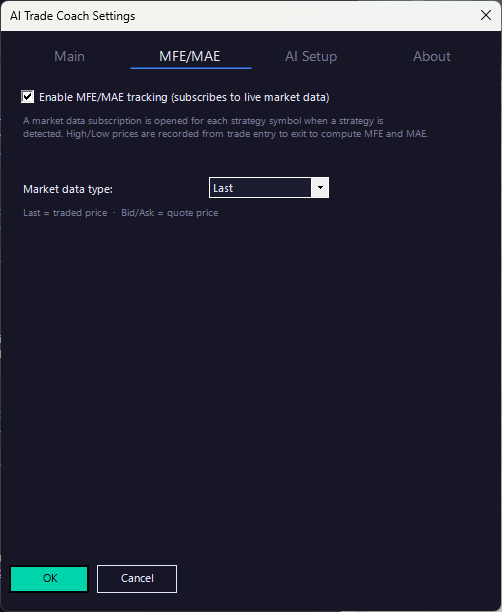
Enable MFE/MAE tracking — on by default. When enabled, AI Trade Coach opens a live market data subscription for each strategy's symbol as it's detected, and records theHigh/Low price seen from a trade's entry to its exit to compute MFE and MAE (see Understanding MFE and MAE). Turning this off stops the extra market data subscriptions if you'd rather not use them.
Market data type — which price feed MFE/MAE tracking watches: Last (the traded price),Bid, or Ask (quote prices). Default is Last.
AI Setup Tab
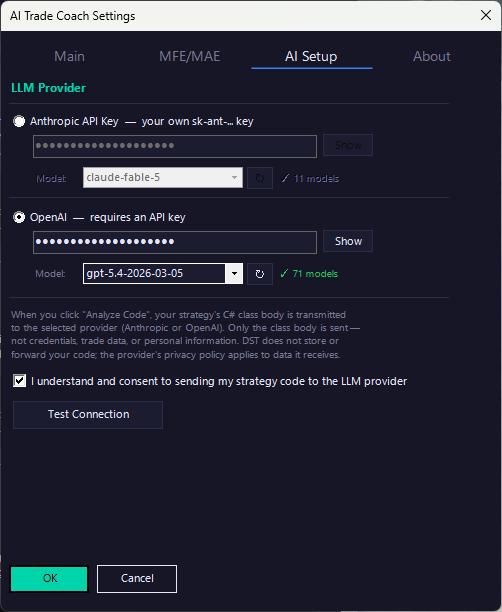
This is where you connect AI Trade Coach to an AI provider. Both Code Coaching and Performance Coaching require a provider to be configured here — Analyze Code and Analyze Trades will refuse to run and direct you back to this tab until it is.
LLM Provider — choose either Anthropic or OpenAI. You'll need your own API key from whichever provider you choose — AI Trade Coach does not supply one.
API key field — your key is masked by default. Click Show to reveal it (or to paste in anew one), then Hide to mask it again. Important: click Show before pasting a new key — a key typed into the field while it's still masked won't be saved when you click OK.
Model dropdown and refresh (↻) button — lists the models your key currently has access to. Click refresh after entering a key to populate the list, then choose the model you want AI Trade Coach to use for that provider.
"I understand and consent to sending my strategy code to the LLM provider" —required before either Analyze Code or Analyze Trades will run. When you click Analyze Code, your strategy's C# class body is transmitted to the selected provider — only the class body is sent, never credentials or personal information. Deep Signal does not store or forward your code; the provider's own privacy policy governs what happens to data it receives. When you click on Analyze Trades, your trade information along with parameter values is sent.
Test Connection — verifies that the selected provider, key, and model actually work together before you rely on them for a real review.
Getting an Anthropic API Key
- Go to console.anthropic.com/settings/keys
- Sign in or create an Anthropic account
- Select Create Key, name it (e.g. "AI Trade Coach"), and copy the key — it starts with sk-ant-
- In AI Trade Coach, select the Anthropic API Key option, click Show, and paste the key in
- Click Test Connection to confirm it works, then OK to save
Anthropic API usage is billed separately by Anthropic based on your account's plan — check their pricing page for current rates before heavy use.
Getting an OpenAI API Key
- Go to platform.openai.com/api-keys
- Sign in or create an OpenAI platform account
- Select Create new secret key, name it, and copy the key
- In AI Trade Coach, select the OpenAI option, click Show, and paste the key in
- Click Test Connection to confirm it works, then OK to save
OpenAI API usage is billed separately by OpenAI, and typically requires adding billing details to your platform account before a key will work — check their pricing page for current rates.
About Tab
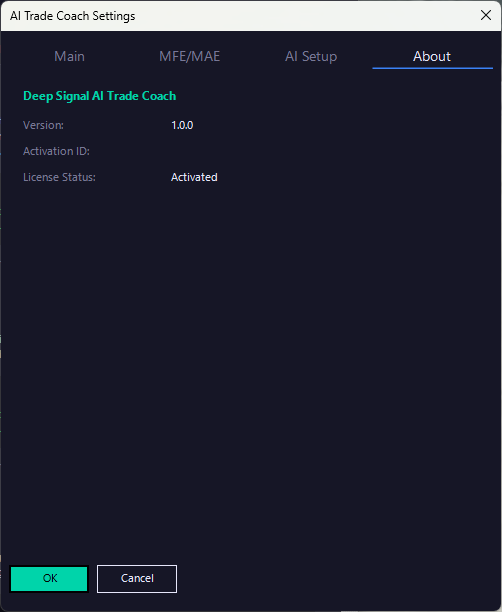
Read-only reference information: your AI Trade Coach Version, Activation ID, and LicenseStatus. License status is checked automatically when the tab is opened.
Futures, foreign currency and options trading contains substantial risk and is not for every investor. An investor could potentially lose all or more than the initial investment. Risk capital is money that can be lost without jeopardizing ones financial security or lifestyle. Only risk capital should be used for trading and only those with sufficient risk capital should consider trading. Past performance is not necessarily indicative of future results.